

Turn any TV into your business screen.
Upload a photo, add your hours or a promo, and put it on the TV you already own. Content is saved on the TV, so it keeps playing through an internet outage as long as the TV stays on.
- From $7/month
- No designer needed
- Plays through internet outages
- Google TV
- Roku
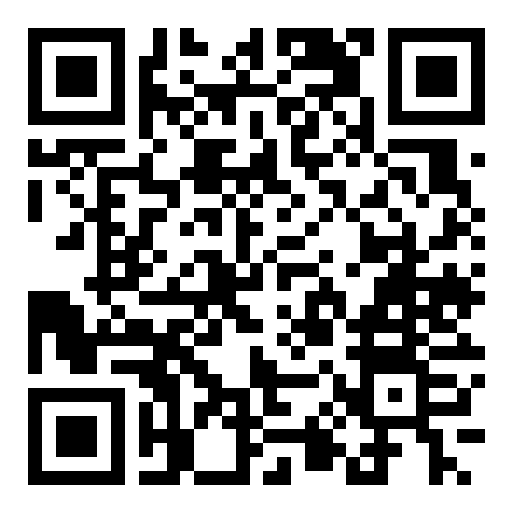
A sample TV for a made-up dental office, cycling through four slides: a welcome message, a new-patient promotion, the office hours and a QR code for booking.


- For dental clinics
- For barbershops
- For restaurants
- For cafés
- For gyms
- For waiting rooms
- For retail stores
- For offices
- For community centers
Up and running in four steps
Everything happens in the dashboard and on the TV.
- 01
Add your brand
Logo, colors and fonts, set once in Brand Studio.
Business & ProBrand - 02
Create your content
Upload an image, or fill in a ready-made layout: announcement, promotion, business hours or QR code.
Content - 03
Build a playlist
Choose the order, how long each item shows, and when it runs.
Playlist - 04
Pair your TV
Open the app on the TV and enter the code it shows in your dashboard.
Pairing
One dashboard for every TV Change something on your laptop, and every paired TV picks it up on its own.
See what you can show →Screens that look like your business
On Business and Pro plans, every layout uses your logo and colors automatically.
Welcome
Greet people by your business name, not a blank TV.
Promotion
Today's offer, big and readable from across the room.
Business hours
A weekly list that highlights today, with closed days marked.
Announcement
Closures, reminders, new services.
QR code
Bookings, reviews or your online menu.
Image
Your own photos and graphics, full screen.
What happens when the internet drops
A TV in your waiting room shouldn't depend on perfect Wi-Fi.
After a power cut, a Roku has to download your content again, and the Beaver Screen channel must be reopened by hand.
Saved on the TV
Content is stored on the TV, so playback continues through an internet outage as long as the TV stays on.
Updates when it's back
The TV picks up your latest changes once the internet returns.
Keeps moving
If a file fails to load, it is skipped and the playlist carries on.
Made for the TV you already have
Clinics & waiting rooms
Welcome message, office hours, reminders, booking QR.
Restaurants & cafés
Specials, hours, a QR code to your online menu.
Barbershops & salons
Prices, promos, booking QR.
Retail stores
Sales, new arrivals, window promos.
Gyms & studios
Class times, announcements, member offers.
Offices & community spaces
Announcements, events, welcome screens.
Compared with a USB stick or a PowerPoint loop
| Option | Update from your laptop or phone | Keeps playing if the internet drops* | No extra computer at the TV |
|---|---|---|---|
| A USB stick in the TV | No | Yes | Yes |
| A PowerPoint loop on a laptop | No | Yes | No |
| Beaver Screen | Yes | Yes | Yes |
A USB stick in the TV
- Update from your laptop or phone
- No
- Keeps playing if the internet drops*
- Yes
- No extra computer at the TV
- Yes
A PowerPoint loop on a laptop
- Update from your laptop or phone
- No
- Keeps playing if the internet drops*
- Yes
- No extra computer at the TV
- No
Beaver Screen
- Update from your laptop or phone
- Yes
- Keeps playing if the internet drops*
- Yes
- No extra computer at the TV
- Yes
- * Beaver Screen plays content saved on the TV for as long as the TV stays on. A Roku loses its saved content when unplugged.
- Beaver Screen is in pilot on Google TV and Roku, and in testing on Fire TV.
More features
Brand StudioBusiness & Pro
Logo, colors, typography and header layout on every screen.
Scheduling
Show items on certain days, in a daily time window, or between two dates.
Multiple screens
Screens per account: up to 3 on Starter, up to 10 on Business, unlimited on Pro. Each one has its own playlist.
Screen groupsPro
Update several TVs at once with a shared playlist and look.
Clock & weather
A live clock on every plan; local weather in the header on Business and Pro.
Remote updates
Change content from a laptop or phone.
Pairing codes
Connect a TV with a short code shown on screen.
Business hours
A weekly hours slide that highlights today, with closed days marked.
Simple pricing for small businesses
Pick a plan. Cancel anytime from your account's billing page.
Starter
Put useful content on your TV.
$7/month
- Up to 3 screens
- Images, announcements, promotions, business hours and QR codes
- Scheduling
- Standard Beaver Screen design
- Clock
- Recommended
Business
Make the screen look like your business.
$10/month
- Up to 10 screens
- Everything in Starter
- Brand Studio: logo, colors, typography and header
- Weather
Pro
Manage more screens as one system.
$19/month
- Unlimited screens
- Everything in Business
- Screen groups
- Groups share a playlist, time zone and appearance
Prices in US dollars, billed monthly per account; screen limits apply. Taxes may apply.
Beaver Screen is in pilot on Google TV and Roku devices, and in testing on Fire TV.
Questions, answered plainly
Beaver Screen is in pilot on Google TV / Android TV and Roku, and in testing on Fire TV, built in or on a plugged-in streaming device. The TV apps are not in the app stores yet, so there is nothing to download today. See the Devices page for status.
No signage box. If your TV isn't a smart TV, a standard Google TV or Roku streaming device works for the pilot, and Fire TV is in testing.
A TV that stays on keeps playing the content already saved on it, and picks up your latest changes when the connection returns. A Roku loses its saved content when unplugged, so after a power cut the Beaver Screen channel has to be reopened and needs an internet connection once to download your content again.
Yes. Images: JPEG, PNG or WebP up to 25 MB. Videos: MP4 up to 200 MB, played without sound. On Roku the TV stores about 80 MB of media in total, images and videos together. Videos that do not fit are skipped, so keep each video under about 60 MB. Google TV has no such limit. Fire TV video playback is still being tested. Images and videos sit in the same playlist as announcements, promotions, business hours and QR codes.
No. On Business and Pro plans you set your logo, colors and fonts once and every layout uses them. Starter uses the standard Beaver Screen design.
Yes. Each screen has its own playlist. Screens per account: up to 3 on Starter, up to 10 on Business, unlimited on Pro. Pro adds screen groups, so you can manage several TVs together.
Yes. Show an item only on certain weekdays, in a daily time window, or between two dates, on every plan.
Open the Beaver Screen app on the TV. It shows a short pairing code; enter that code in your dashboard.
Yes, from your account's billing page. Plans are billed monthly in US dollars.
No. Google TV, Roku and Fire TV come first.
See how your content would look on your TV
The demo shows real layouts with a sample business. No account needed.
Pilot on Google TV and Roku. Fire TV is in testing.